> ## Documentation Index
> Fetch the complete documentation index at: https://seal-d2ca5bea.mintlify.site/llms.txt
> Use this file to discover all available pages before exploring further.
# Page content
> How to create great entities using our powerful document editor.
# Structure
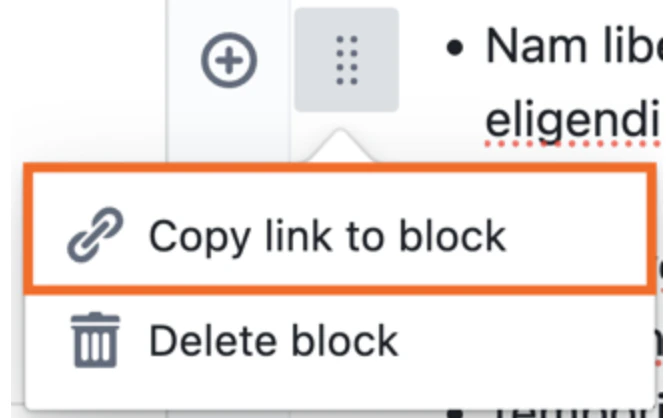
Pages in Seal are made up of **blocks**. A block can be many things, ranging from a field to a checkbox or bit of text.
You can copy links to blocks — when someone clicks on the URL, the page scrolls to that section and momentarily highlights it.
 # Formatting text
Users can use markdown auto-formatting to format text in the document editor. This may help save time by automatically applying formatting without needing manual styling.
See table below for markdown varieties.
| Symbol | Description |
| ---------------- | ------------------------------------------------------------------------------------------- |
| `[]` | Checkbox |
| `#`, `##`, `###` | Heading 1, heading 2, heading 3 \* Note that headers can be in lists, and indented as well. |
| ` `` ` | Codeblock |
| `*` or `_` | Italics |
| `**` | Bold |
| `__` | Underline |
| `-` | Bulletpoints |
| `1.` | Numbered list |
| `~~` | Strikethrough |
You can also adjust indentation, for better organisation.
* Press the **Tab** key to indent
* Hold **Shift + Tab** to unindent.
# Formatting text
Users can use markdown auto-formatting to format text in the document editor. This may help save time by automatically applying formatting without needing manual styling.
See table below for markdown varieties.
| Symbol | Description |
| ---------------- | ------------------------------------------------------------------------------------------- |
| `[]` | Checkbox |
| `#`, `##`, `###` | Heading 1, heading 2, heading 3 \* Note that headers can be in lists, and indented as well. |
| ` `` ` | Codeblock |
| `*` or `_` | Italics |
| `**` | Bold |
| `__` | Underline |
| `-` | Bulletpoints |
| `1.` | Numbered list |
| `~~` | Strikethrough |
You can also adjust indentation, for better organisation.
* Press the **Tab** key to indent
* Hold **Shift + Tab** to unindent.
 ## Numbered lists
To create an automatically numbered list, prefix each list item with a number followed by a period.
The numbers do not need to be in order — the system will automatically number the list sequentially.
Clicking the 'Tab' button will indent the list, as follows:
## Numbered lists
To create an automatically numbered list, prefix each list item with a number followed by a period.
The numbers do not need to be in order — the system will automatically number the list sequentially.
Clicking the 'Tab' button will indent the list, as follows: