Review requirements
Review requirements can be set on a template or a type. If requirements are set on a template, they will override any set on the type. These requirements must be met when a relevant entity is sent for review. When configuring requirements, you can select a user group and specify the number of users from that group required for approval. Alternatively, you can select an individual user. Requirements can also be renamed and reordered. Reordering controls how requirements are displayed; it does not force reviewers to approve in that order. Review phases are not sequential. Once a change set is sent for review, users in any required phase can approve in any order. The change set is ready to publish only after every required phase has enough approvals and all Checks have passed. Each review phase carries a signature meaning (e.g. Approval, Review, Responsibility, Authorship, Acknowledgement, or a custom value) that satisfies 21 CFR § 11.50. The meaning is displayed as a read-only label when the reviewer signs off and is permanently recorded in the audit trail.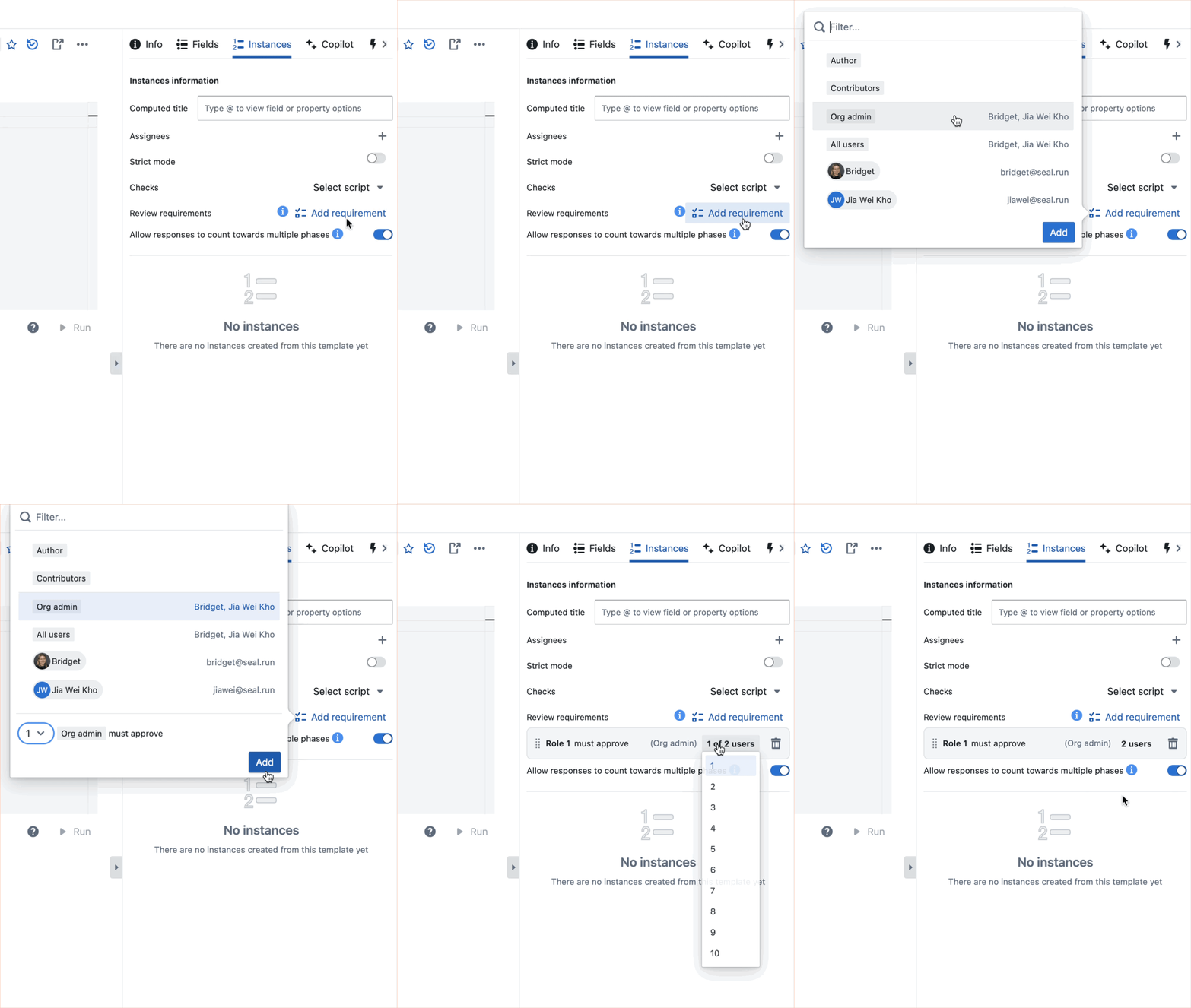
Reminders
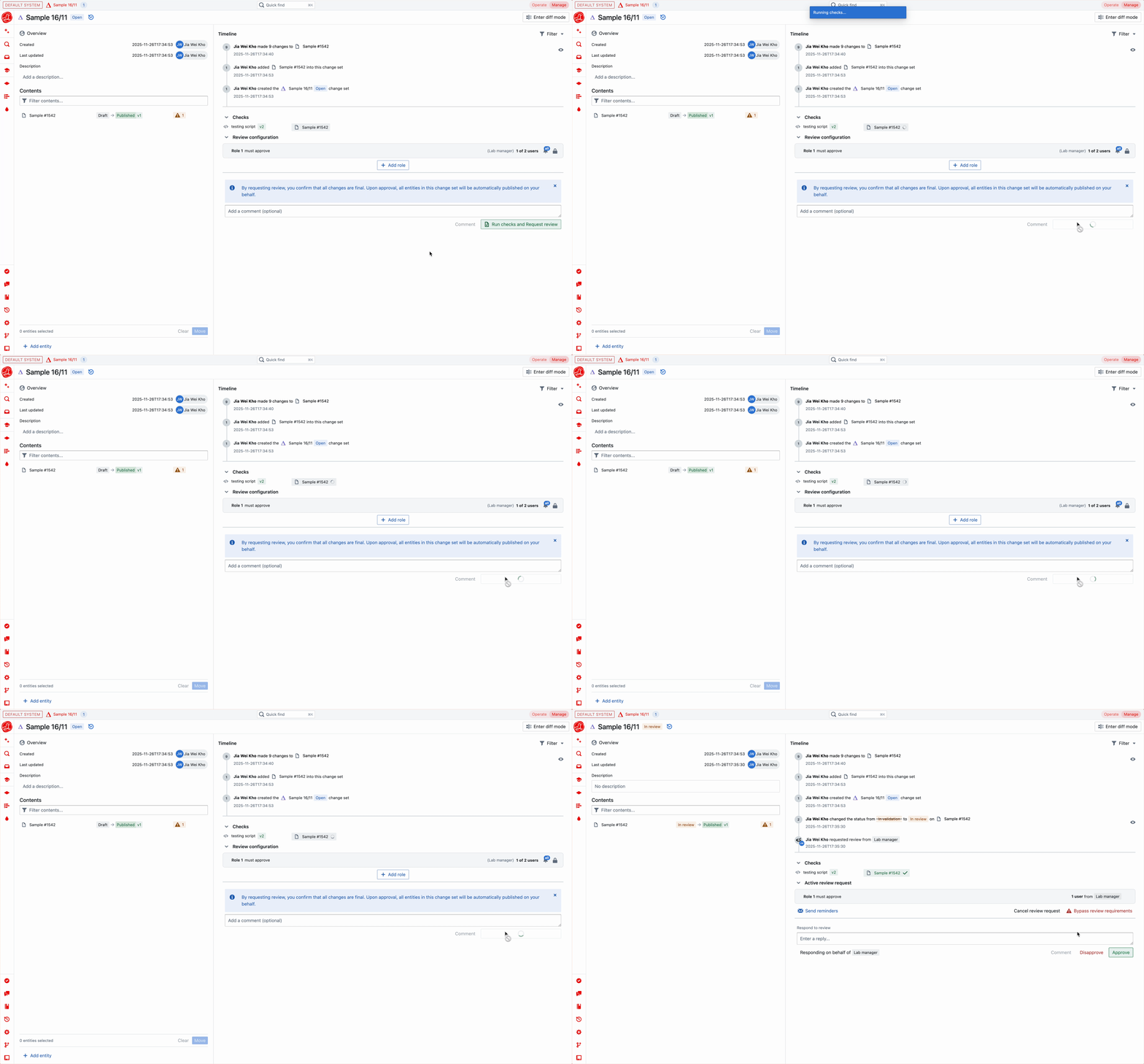
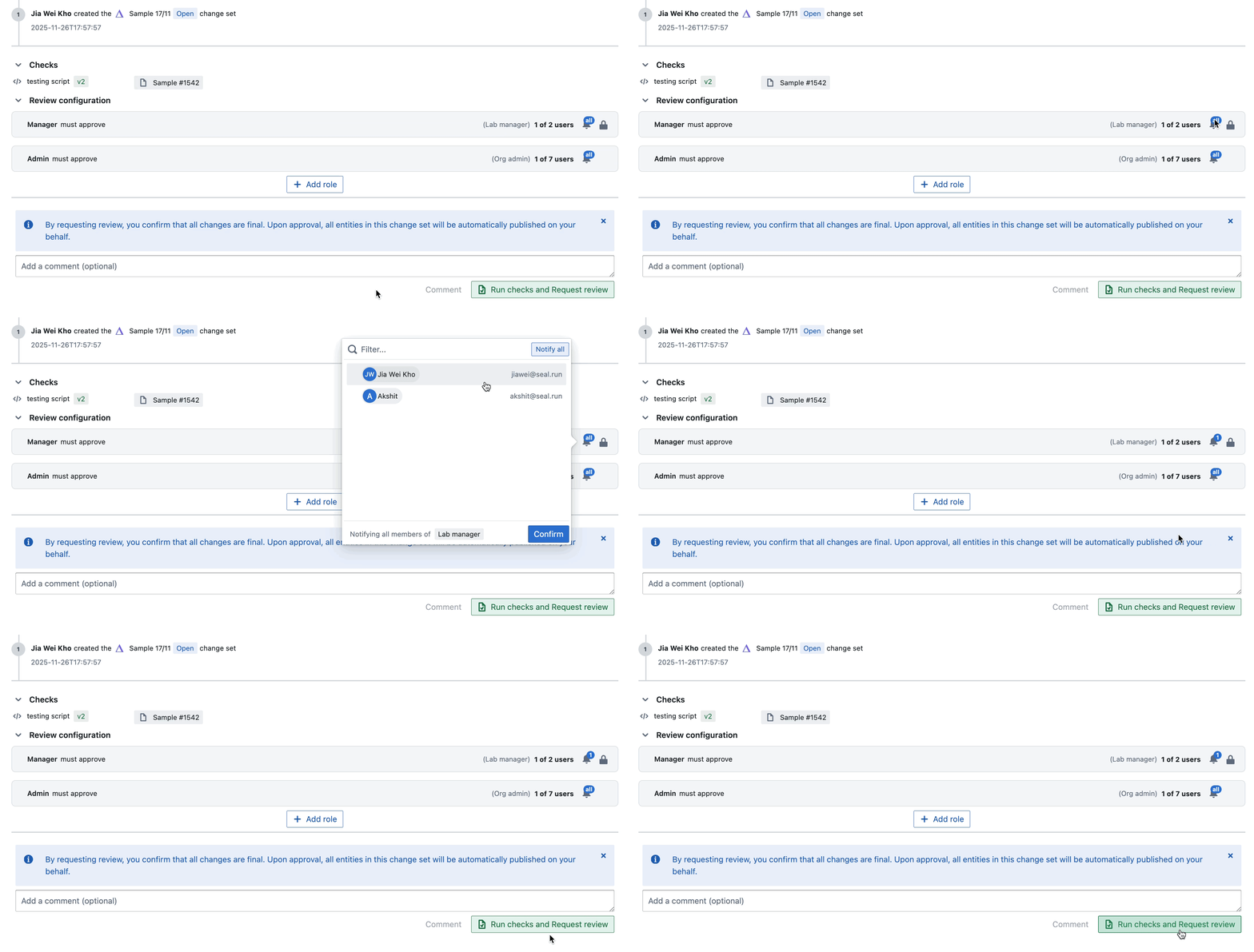
Seal does not automatically chase reviewers. If a change set has been sent for review and a reviewer has not yet approved, no follow-up is sent on its own — and a pending review never times out, auto-approves, or escalates. The person who requested the review can send a reminder manually from the review panel. Use Send reminder next to an individual reviewer, or Send all reminders to notify everyone with an outstanding approval at once. A reminder re-sends the review request email to reviewers who have not yet responded.Checks
What is a Check?
Checks are automations that must pass — meaning they must run successfully, without errors — before a document can be published or sent for review. If a Check fails, you are not able to proceed with publishing.How do I configure checks?
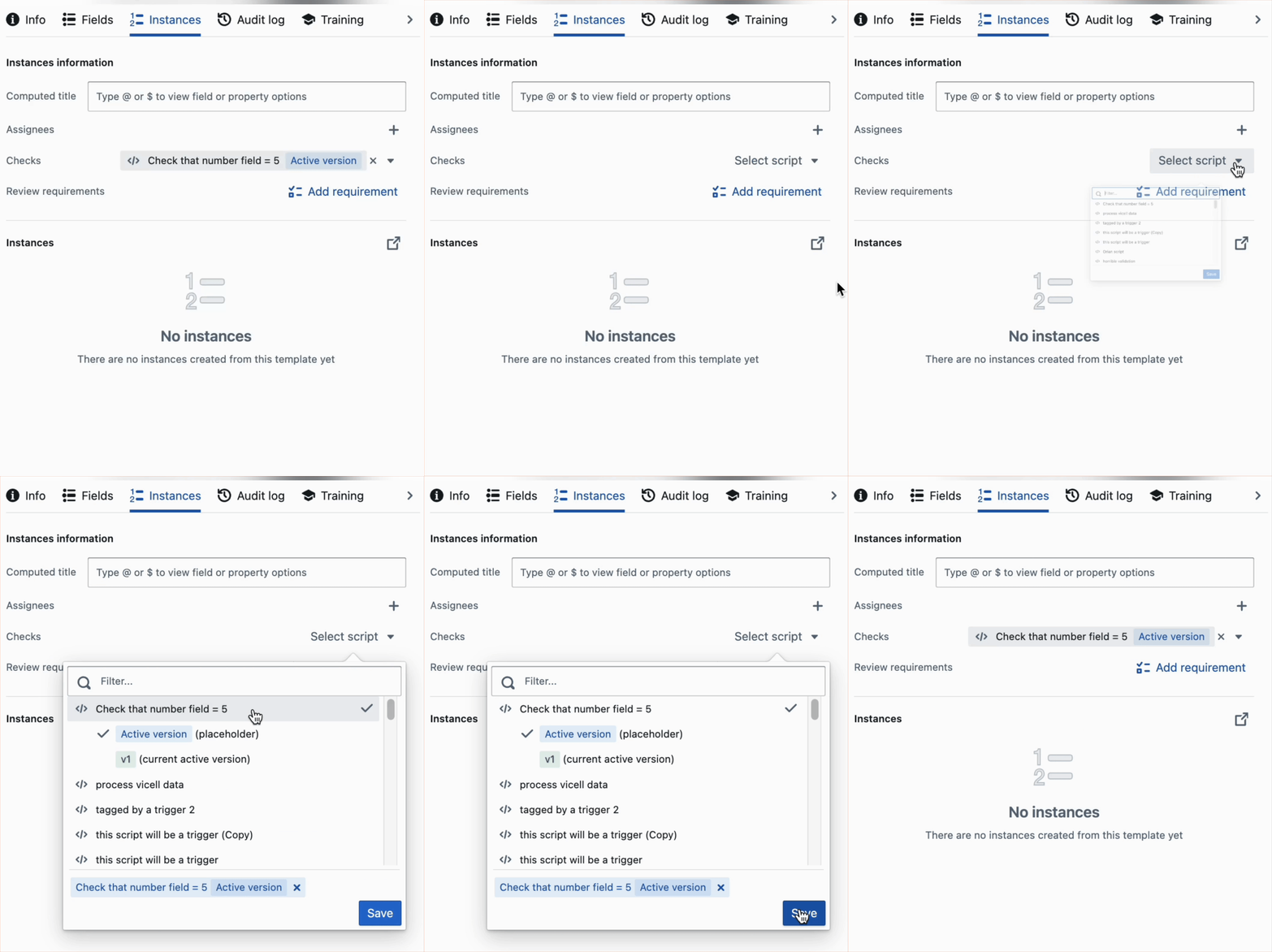
Checks can be set on both Types and Templates, giving you flexible control over how and where your validation rules apply.- Setting a Check on a Type will enable you to set Checks for all templates and instances of the type
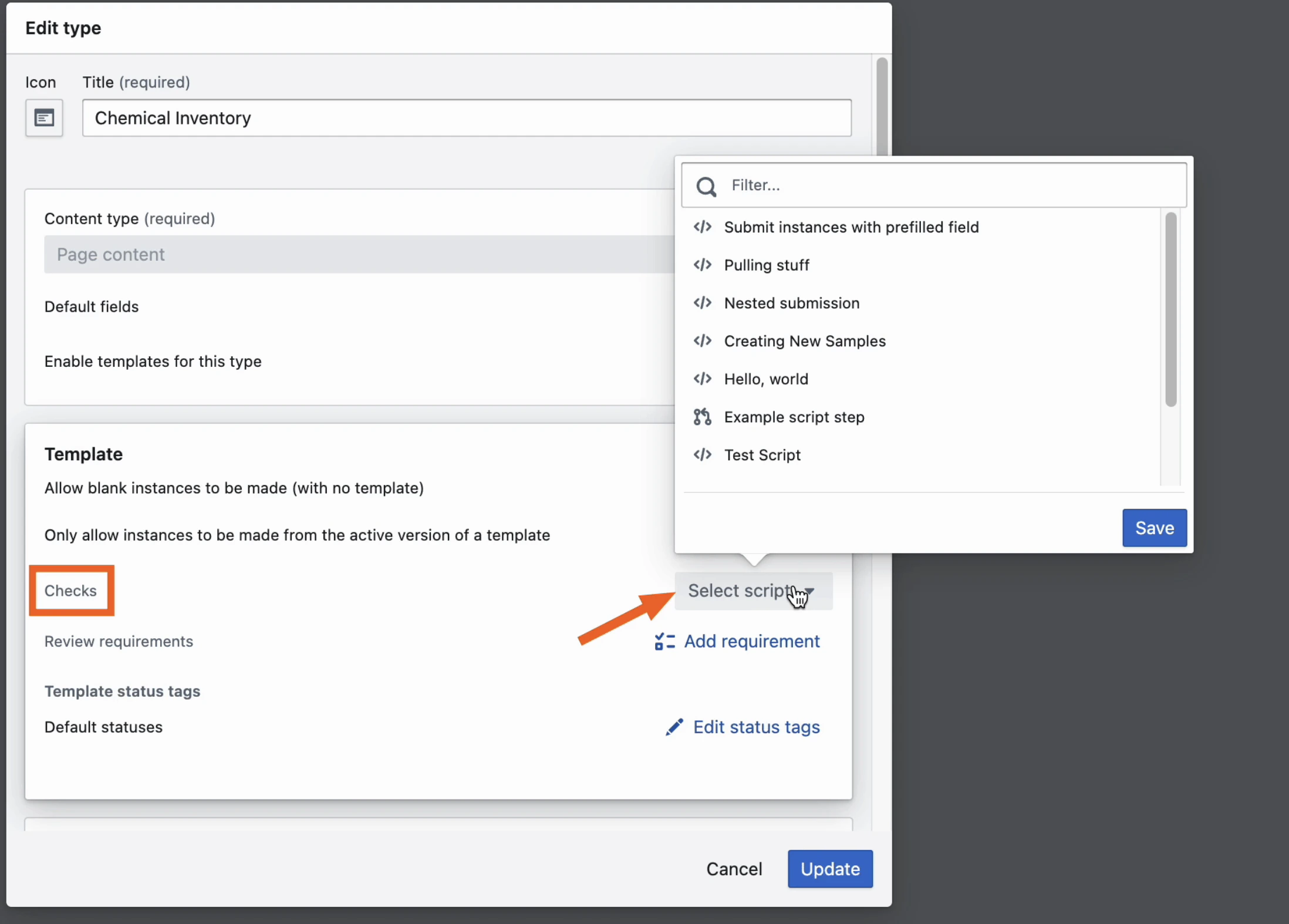
- Setting it on a Template will apply it to all instances of that specific template. To add a Check, navigate to the Instance tab in the entity and select your automation.