

mode: filter:
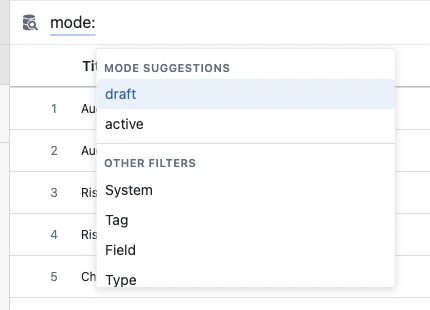
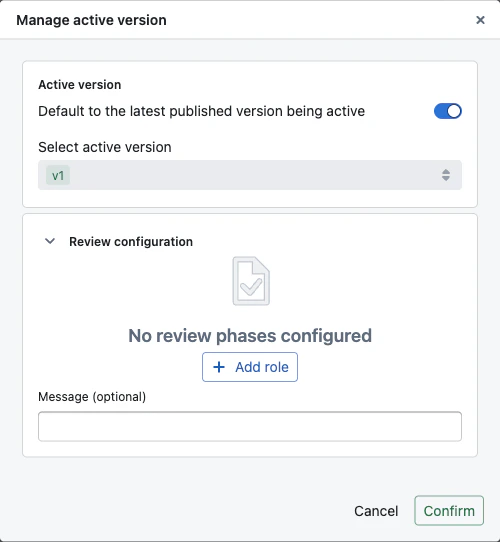
- active - queries the published snapshot of each entity (or a specific pinned version, if set). Entities that have never been published are excluded by default.
- draft - queries the current state of every entity, including drafts, in-review versions, and unpublished changes.
What “active” data includes
active mode shows the published snapshot of every entity — title, fields, and status reflect the values at publish time. If an entity is reopened for editing, those fields still show the published values until the next publish.
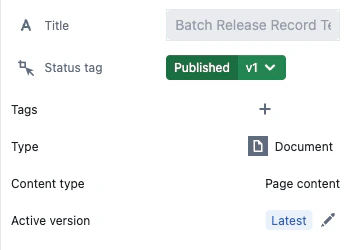
Status tags are always live, in every mode — the column shows the entity’s current lifecycle, never the pinned snapshot. To filter on the pinned published tag instead, use the Active status filter.
Live fields follow the same rule — fields marked live always show their current value. The draftExists flag on each result indicates whether an open draft is present.
Comparing versions
You can compare any two versions of an entity to see what changed between them. To enter diff mode, open the three-dot menu (⋯) on any entity and select Enter diff mode. The page will show a comparison banner at the top with two version selectors — click either to change which versions you are comparing.What the comparison shows
- Documents — inline highlights showing added (green), removed (red), and modified (blue) content directly in the document
- Scripts — line-by-line code diff with added and removed lines highlighted
- Files — side-by-side preview of the old and new file with version labels
- Charts, custom content — a summary indicator showing that content changed
- Field changes — which fields were added, removed, or modified, with old and new values side by side
- Property changes — title, permissions, review requirements, and configuration changes
- Automation changes — inline script code diff with context collapsing, showing only the lines around each change